The short version. Seedance 2.5 takes a finished clip as an input, so you can fix an AI video without starting over. Point at the source, name the one thing that changes, and close with a preservation clause — that third line is what makes it an edit rather than a new take. The catch: an edit inherits the source clip's aspect ratio and duration, so the shape has to be decided before the first generation.
The usual move, when a take is nearly right, is to run it again. A garment is the wrong colour, an extra wanders through the back of frame, the music is too busy under the line — so you change a word and roll the dice on the whole thirty seconds, including the twenty-eight that were already good.
How do you fix an AI video without starting over?
You give the model the clip you already have. The operation is called Controllable Video Editing: it takes the finished clip as its source and leaves everything you did not name alone. Think of it as video inpainting driven by a sentence rather than by a mask you have to paint.
It holds the frame, the camera and the pacing, and rewrites only the thing you point at. Timestamps narrow it further — name "0:02 to 0:05" and nothing outside that window moves.
What can you actually name in an edit?
- Remove an object from a video. The extra wandering through the back of frame, a logo on a wall, a prop that should not be there. Name it, and say what should be behind it.
- Replace or swap an object. A garment, a vehicle, a handheld product — described in words, or matched against a reference image you attach.
- Add a subject. A person, an animal, a piece of set dressing the original take is missing.
- Change the colour or material of one thing, without dragging the grade on everything around it with you.
- Swap the whole scene against a reference image, keeping the performance that plays in front of it.
- Change the audio. A different music bed, an added effect, a re-voiced line, picture untouched.
How do you write an edit prompt?
Short, and in three parts, in this order: point at the source, name the object and the change, then close with a preservation clause.
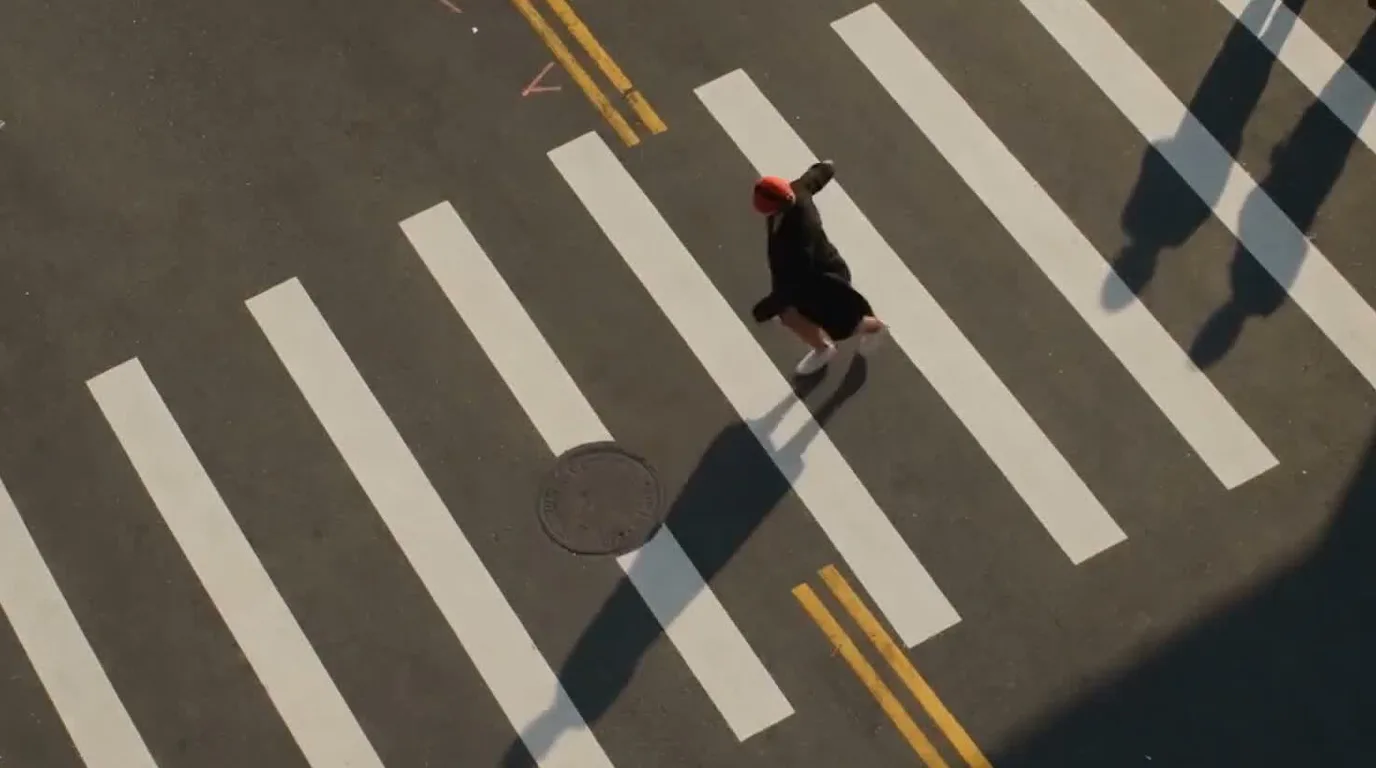
Replace the dark coat on the woman in the red cap in @video 1 with a bright yellow raincoat. Keep everything else unchanged.
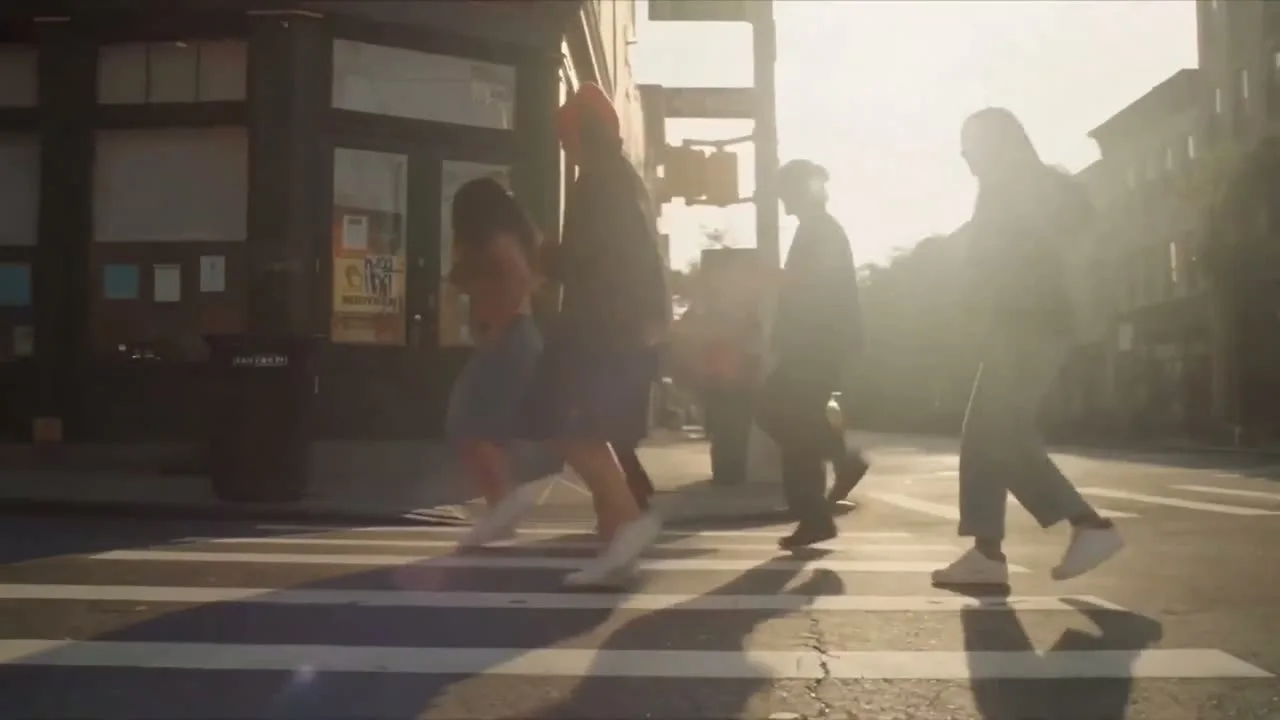
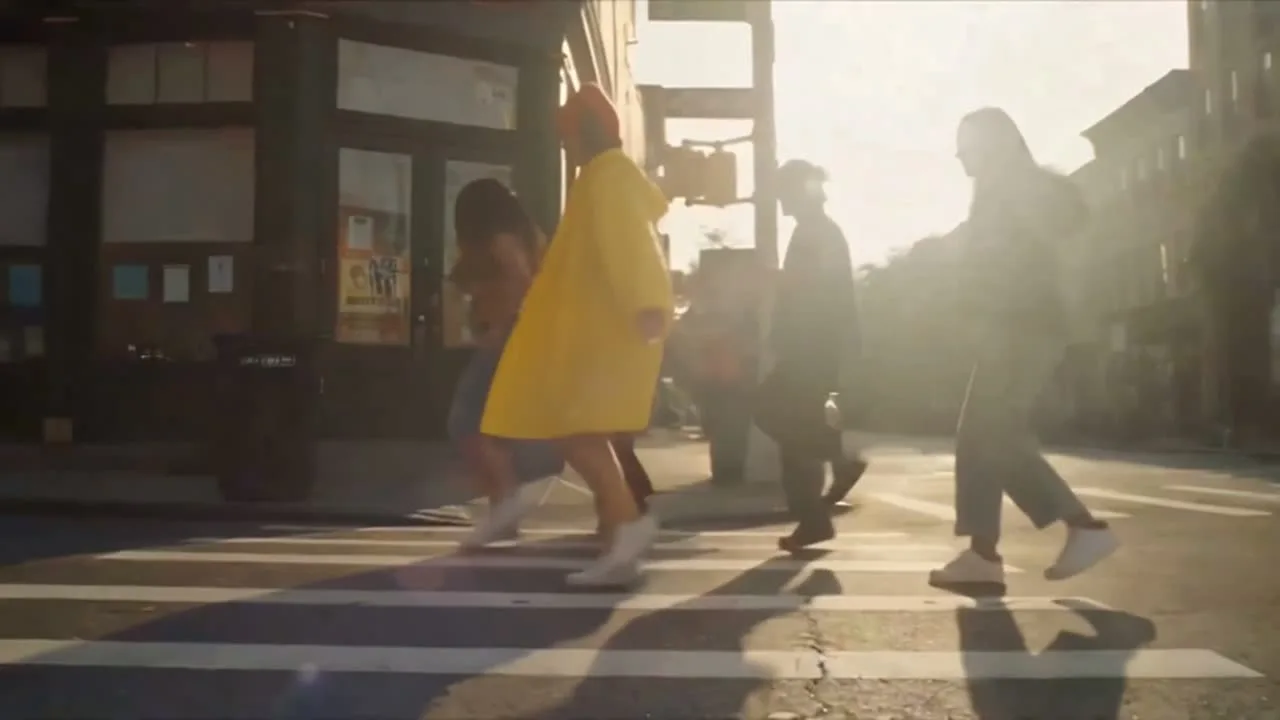
Same frame of the source clip, before and after that one prompt. The framing, the low sun and its flare, the shadows thrown across the crossing, the other pedestrians and her stride all hold. Worth knowing: the model re-renders the shot rather than compositing over it, so fine detail is redrawn rather than kept pixel for pixel.
The third line is the one people leave off, and it is the one that decides whether you get an edit or a new film. Without it, nothing tells the model that the rest of the frame is already finished, and it will helpfully improve things you never mentioned.
The same shape works on sound. Point at the clip, name what should be different about the audio, say the picture stays put.
Say what you want as a physical cause, never as a ban. "Keep everything else unchanged" holds the rest of the shot still while the part you named changes. "Do not change anything else" invites the model to go looking for what else there is.
Why can't you change the aspect ratio of an edit?
This is the part most likely to catch out anyone arriving from Seedance 2.0, which drew no such line. In 2.5, whether the aspect ratio and duration are yours to choose depends on whether your source assets already fix them:
| Task | Aspect ratio | Duration |
|---|---|---|
| Editing | Locked to the source clip | Follows the source, within about a third of a second |
| First frame, or first and last | Locked to the first-frame image | Yours to set |
| Reference generation | Open | Yours to set |
| Storyboards and keyframes | Open | Yours to set |
The practical consequence: there is no reframe step inside an edit. You cannot edit a 16:9 master into a 9:16 cut, so repurposing a landscape clip for vertical is a generation, not an edit. Plan the shape at the point where it is still open — the reference generation — and let editing handle everything after that.
One more, if you work from a first and a last frame: give both images the same dimensions. Where they differ, the last frame is stretched to match the first. That stretch is the model doing what it was told, not a fault to prompt around.
How is this different from a prompt-based video editor?
Most tools that advertise editing with a prompt are doing one of two things: a tracked object removal that rebuilds the gap it leaves, or a full video-to-video restyle that repaints every frame. Controllable Video Editing sits between them. It re-renders the shot, so it can add and replace things a removal tool cannot; it stays anchored to the source, so it does not drift the way a restyle does.
The trade is that it is not pixel-preserving, and it is bound to one model's look. Veo 3.1 gives tighter frame control across 8 seconds; Kling 3.0 Omni leans stylised. And if the original footage has to survive byte for byte — licensed stock footage, a legal disclaimer, a fixed logo lock-up — this is the wrong tool and a conventional editor is the right one.
Its sibling operation is temporal extension, which writes what comes before or after a clip rather than inside it. Same instinct, different axis: keep the take, add to it.
When should you re-roll instead of editing?
Editing is the wrong tool when the thing you want to change is the thing the take is built on. A different performance, a different camera language, a different structure — those are not regions of the frame, and naming them as an edit gets you a worse version of a new film.
The test: if you can point at what changes and say what stays, edit it. If you cannot, write it again.
Two rules to take away
- End every edit with a preservation clause. Point, name, preserve. The third line is what makes it an edit.
- Decide the aspect ratio before the first generation. An edit inherits it from the source, and nothing downstream will give it back.
Both are cheap to test. New accounts start with 100 free credits, which is enough to take a clip you nearly like, run one edit on it, and see whether the rest of the frame holds.
The source film, and the stills taken directly from it, are ByteDance's own Seedance 2.5 demonstration material. The edited frame was generated from that clip with Seedance 2.5 in Popcraft.