

Popcraft Canvas is a visual AI workspace for creating and connecting images, video, audio and text on a board. The latest Canvas updates bring model comparison, recoverable node history, video batches, image inspection and a fuller video editor with layered audio.
For creators making ads, storyboards, short films or social videos, these changes make it easier to explore alternatives and carry a chosen result through to an edited sequence.
Here is what has changed in the October 2026 update.
Compare AI image and video models from one prompt
Popcraft Canvas now lets you select several compatible image or video models for the same prompt. Open the model picker, choose Compare models, select your models and generate.
Comparison mode produces one output per model. Open Compare images or Compare videos to review the current results together, inspect an individual result and choose the main result you want to use. New comparison runs keep the alternatives together in one node, helping the board stay manageable.
The model picker checks compatibility with your settings and references. A model that cannot use the selected resolution, duration, reference type or generation mode shows a reason. If a settings change makes selected models incompatible, Canvas asks you to remove them before continuing.
Use model comparison when you want to see how different models interpret an idea. Use a single-model batch when you want several variations from one model. Generation uses credits; review the estimate before submitting.
Compare image variations and inspect the details
Popcraft Canvas also provides a side-by-side view of image variations within a batch. Select an image to inspect it, then use Set as main to choose the result displayed on the node.
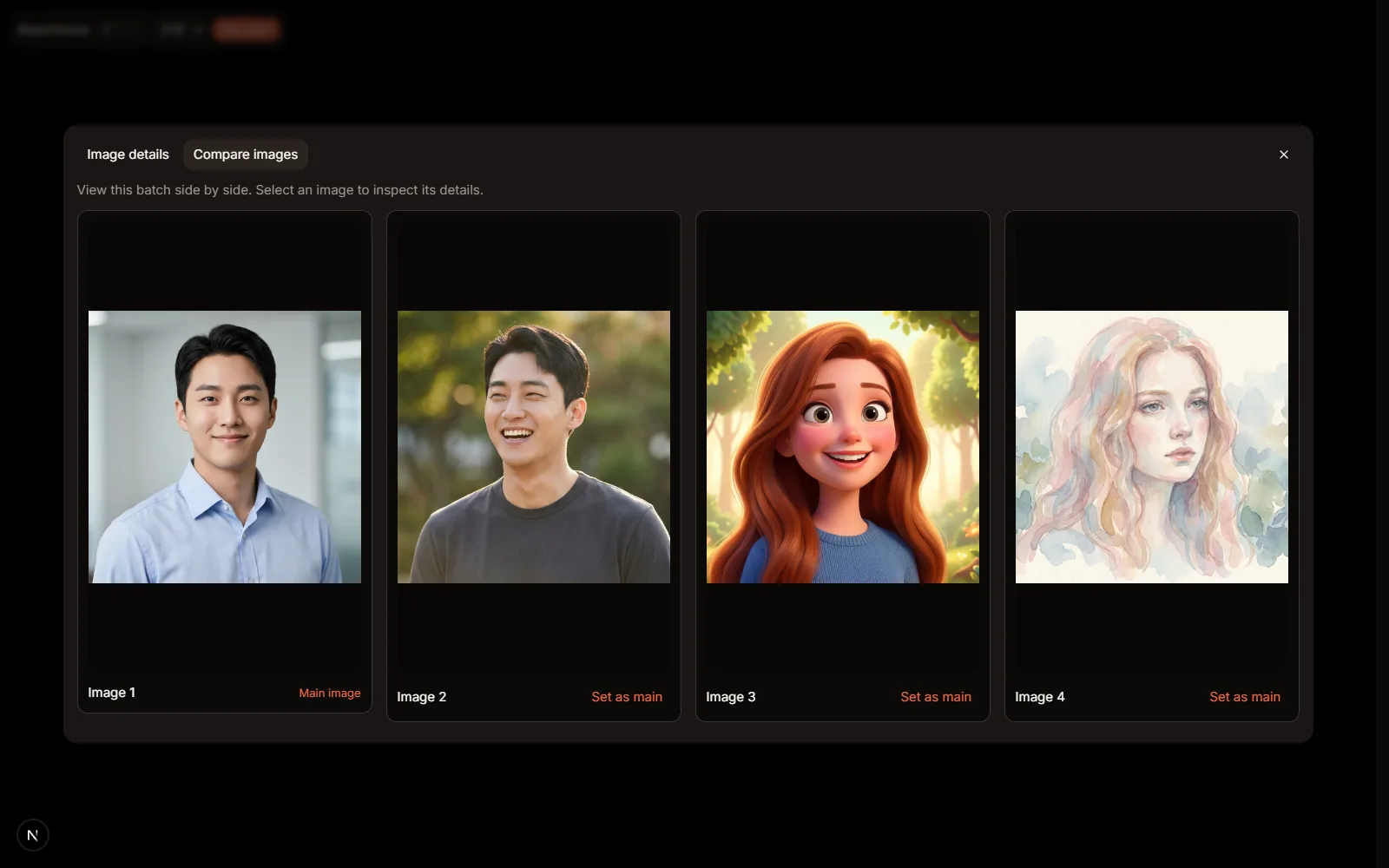
The batch comparison view puts alternatives together so you can judge composition and style before choosing a main image.
The image detail viewer now supports zooming and panning inside the image. Use Actual size (1:1) to inspect the source pixels or Fit to view to see the whole composition. Ctrl/Cmd + scroll zooms the image, and dragging moves around the enlarged view.
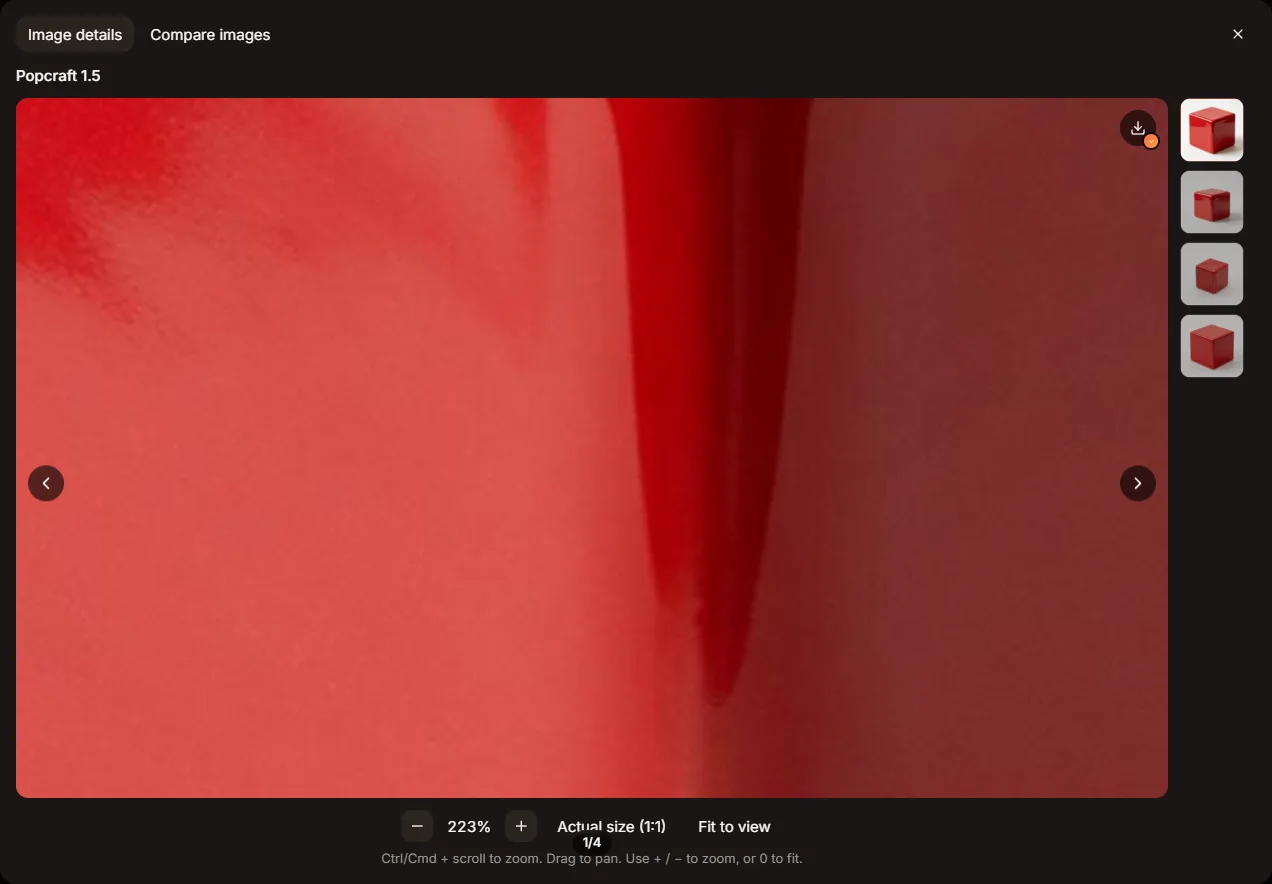
Use the detail view to check edges, textures and small visual defects before carrying an image into the next step.
Restore earlier results with node history
Popcraft Canvas node history lets you recover earlier content and generation settings for an individual image, video, audio or text node. Open Node history from the composer or the node menu.
Versions holds recorded generations, manually saved versions and restores. Use Save version to keep an important draft without generating.
Prompts lets you revisit original and enhanced video or audio prompts, including enhancement results you did not apply.
Use this prompt brings back the prompt while preserving the current output.
Restore node brings back the selected version's content and settings while keeping the node's position and connections.
Restoring a saved version does not generate again or spend credits. A restore also saves the state it replaces, so you can return to that work afterwards.
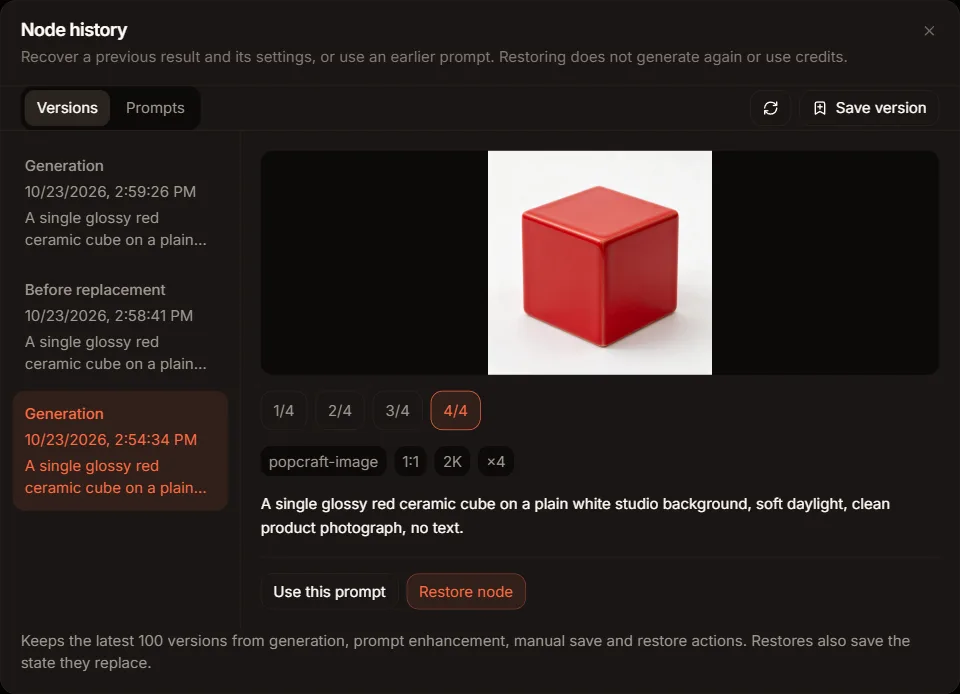
Browse an earlier batch before restoring it. The generation settings and its outputs stay together.
As of October 2026, node history retains up to 100 explicit versions per node. Routine typing does not create a version for every edit, and history cannot recover work that was never recorded.
Generate video batches and upgrade a selected draft
Popcraft Canvas image and video composers offer ×1, ×2 and ×4 output selections, subject to model support. A new run replaces the results currently shown on the node; earlier recorded runs remain available through node history.
For Seedance 2.5, Draft mode supports batches of 480p previews. Browse to the clip you prefer and choose Upgrade to 1080p. The upgrade targets the clip you are viewing, even when that clip has not been set as the main result.
The upgraded clip is saved as a separate version. As of October 2026, the original seven-day draft upgrade window still applies; restoring a draft does not restart that window. Upgrading is a generation action with a credit cost, separate from restoring history.
Edit video and arrange audio inside Canvas
Popcraft Canvas now gives video nodes a direct Edit video action that opens a connected, editable composition. The editor brings the video sequence, audio layers, preview and clip properties into one workspace.
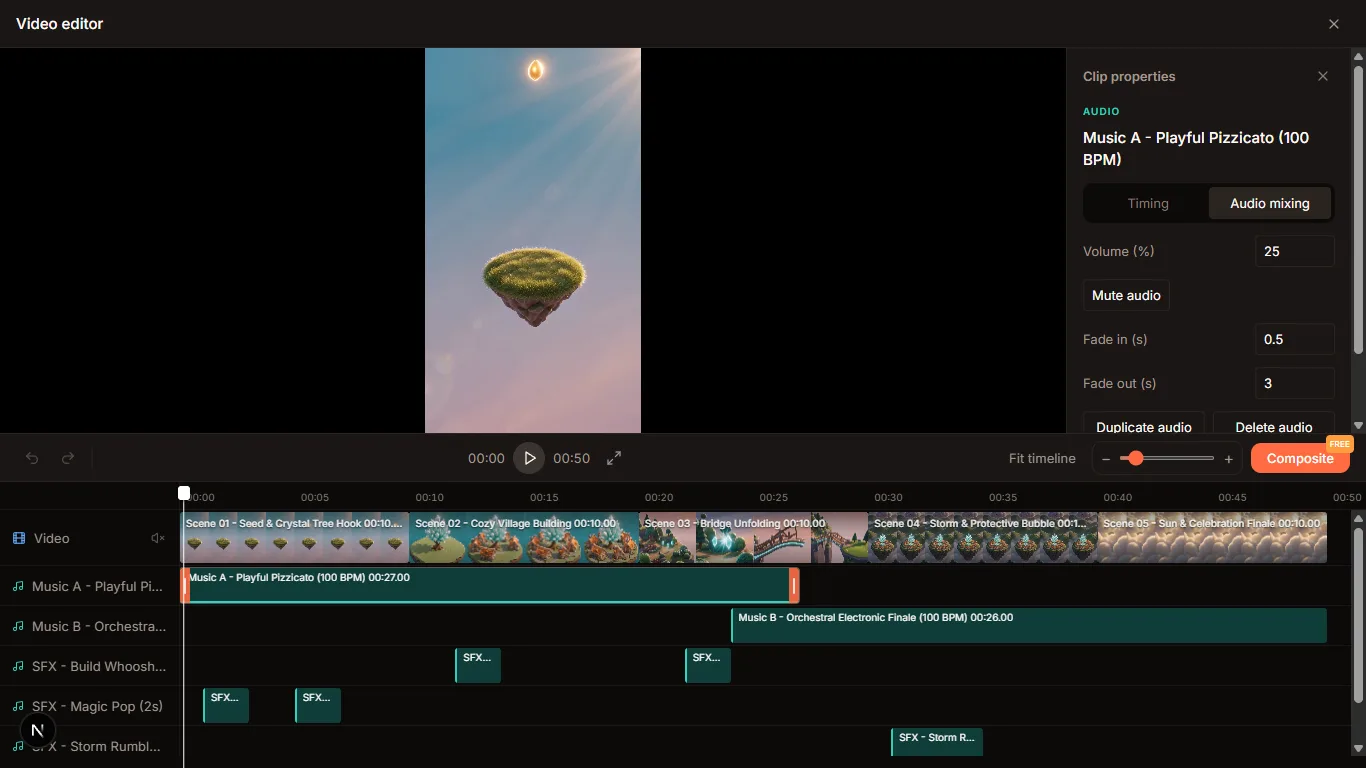
The editor separates clip timing from audio mixing. Select a clip to reach its relevant controls.
The updated editing workflow includes:
Video timing: trim clips, adjust playback speed and organise the sequence.
Audio arrangement: add ready audio from the board, position clips, set source in/out points and split audio at the playhead.
Layered sound: place overlapping music, narration and sound effects on separate audio layers.
Audio mixing: adjust each clip's volume, mute it and set fade-in and fade-out times.
Reuse and revision: duplicate audio clips and undo or redo edits.
Timeline navigation: fit the timeline to the available space and select clips to view their properties.
For example, you can lower a music bed beneath narration, place a sound effect at a cut and fade the music out at the end. The video sequence defines the export duration: audio beyond the end stays in the project but is excluded from the export.
Export cards also distinguish an export that matches the current project from an earlier export when newer edits exist. Edit project takes you back to the editable composition.
Move around boards and manage references more easily
Popcraft Canvas adds smaller improvements that help during everyday work:
Pointer and hand tools separate selecting nodes from panning around a board.
Prompt text selection no longer starts a board pan.
Single-result viewing follows the current output's aspect ratio, and fullscreen opens the output you are viewing.
Click-to-play video gives you control over when a preview starts.
Reference selection and ordering have been improved, including using an upstream image's updated URL after regeneration.
Group dragging handles selected nodes entering groups more consistently.
Try the updated Canvas workflow
Open Popcraft Canvas, choose a board and start with the improvement that fits your next task:
Explore a look: compare compatible models or generate a batch of variations.
Choose with confidence: inspect images in detail and set your preferred output as main.
Keep useful work: save a version before changing direction, then use node history when you need to return.
Build the sequence: open Edit video, arrange the clips and mix the audio before exporting.
Which improvement helps your workflow most, and what would you like us to improve next? Share your experience in the comments.