

- Video
- Tips
Match SaaS Voiceover to the Screen, One Cue at a Time
An education-software walkthrough should let a teacher follow the interface without guessing what the narrator means by “here.” Record the real workflow first with your usual screen-recording tool. Then write narration against the visible actions. This process does not assume Popcraft captures your screen automatically.
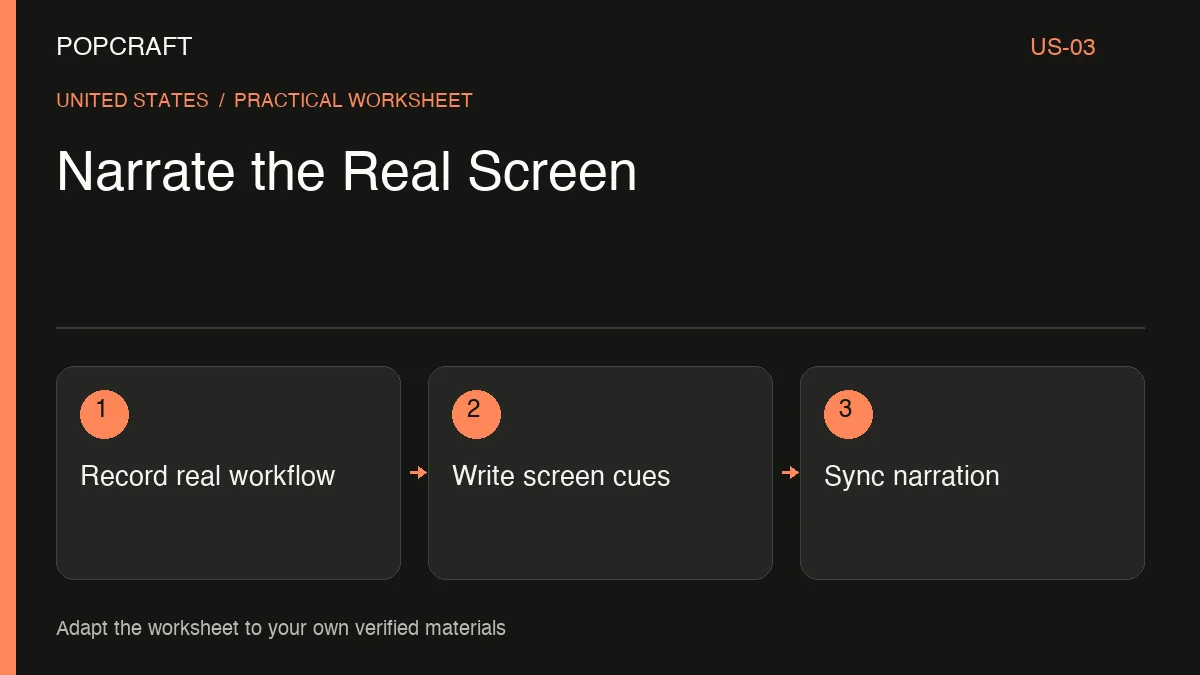
The hypothetical example below covers sharing a lesson link. Replace every button label and action with the ones your product actually supports. Use a demonstration account with sample content, not students' personal records.
A cue sheet you can copy
Cue 1 — establish the lesson. Screen: the actual lesson page before any click. Narration: “Open the lesson you want to share.” Hold: long enough for the viewer to identify the page title. Evidence: screenshot of the starting state.
Cue 2 — reveal the sharing controls. Screen: the real click that opens those controls. Narration: “Choose [exact button label].” Hold: until the controls are fully visible. Evidence: frame showing the actual label. Do not say “share instantly” if the recording includes another required step.
Cue 3 — select the intended option. Screen: the actual access choice. Narration: “Select [approved option] for this example.” Hold: while the viewer reads it. Evidence: the chosen setting. Explain any prerequisite that changes who can open the link.
Cue 4 — confirm the result. Screen: the actual successful state. Narration: “Copy the link, then send it through your usual class channel.” Evidence: visible confirmation. Do not imply the software sends the message unless it really does.
Make the voice fit the task
Popcraft offers voice-generation tools. Generate the approved lines in manageable sections and listen for the product name, abbreviations and button labels. A direction such as “calm instructional delivery; pause before each action” is more useful than “sound exciting.”
In Canvas, arrange the narration with the real recording using the available editing controls. If a line runs long, shorten it or hold an appropriate real frame; do not speed through a menu the viewer needs to read.
Review once with sound muted: the visible action should remain understandable. Then listen without watching: the sequence should still make sense. Finally, follow the tutorial yourself in the current product. If a release changes a button or permission, mark the affected cue for replacement instead of rerecording unrelated sections.
Related official tutorial
Related official video, in English: a general Popcraft product-photo-to-UGC workflow. It is supplemental production guidance, not a demonstration or result of the scenario above.