

- Video
- Tips
Explain Hawker Preorder Pickup in Five Clear Scenes
A preorder video should answer the question customers ask while approaching the stall: “What do I do now?” Build the clip around the collection journey rather than a decorative food montage.
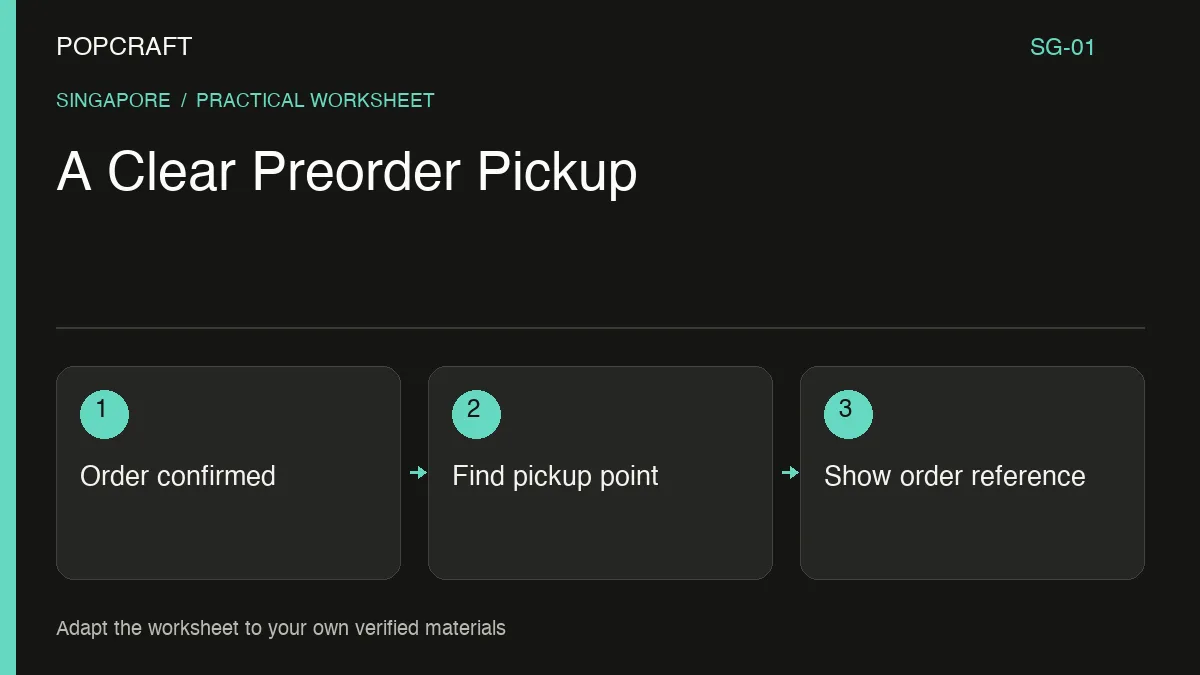
The following storyboard is hypothetical. Use it only after replacing every location, order-status message and collection instruction with the business's confirmed process. Do not publish the example as real directions.
The five-scene pickup storyboard
1. Order confirmed. Show a demonstration confirmation screen created from the actual ordering process. Narration: “Check that your preorder is confirmed before coming to collect.” Display the actual collection window only after the operator approves it. Avoid showing a real customer's name or number.
2. Recognise the stall. Use a current photograph or real footage of the stall sign. Narration: “Find [confirmed stall name and unit].” A generated food-centre entrance could send someone to the wrong place, so use real location evidence here.
3. Find the collection point. Show the real sign or counter area customers should approach. Narration: “For confirmed preorders, collect at [approved pickup point].” Do not imply a separate queue or priority service unless that arrangement exists.
4. Identify the order. Show the required action using a sample reference. Narration: “Show [the reference the staff actually uses].” An illustrative bilingual label is “Show your order reference / 出示订单编号”. Confirm that the Chinese wording matches the operator's process.
5. Check and leave. Show the packed order and the approved handover step. Narration: “Check the items with our team before leaving.” If customers need another action, put it here instead of adding a vague “Enjoy!” that leaves the task unfinished.
Test the sequence with one unfamiliar viewer
Ask the viewer to explain where they would go, what they would show and what they would do if the order were not confirmed. Any unanswered question is a gap in the storyboard. Keep exception instructions on the current order page or contact channel rather than guessing an arrangement in the video.
Popcraft's audio tools can help produce narration, and Canvas can support editing the sequence. Supply real visuals for the food, stall and collection point. Generated inserts, if used, should remain clearly illustrative and should not invent portion sizes, queue lengths or staff procedures.
Keep the storyboard with the approved stall details. A counter move or changed collection process should trigger an update before the old clip is reused.
Related official tutorial
Related official video, in English: a general Popcraft product-photo-to-UGC workflow. It is supplemental production guidance, not a demonstration or result of the scenario above.